If you are citizen of an European Union member nation, you may not use this service unless you are at least 16 years old.
You already know Dokkio is an AI-powered assistant to organize & manage your digital files & messages. Very soon, Dokkio will support Outlook as well as One Drive. Check it out today!
You can use the Practice Sandbox if you want to test things out first. And, if this page isn't enough for you, you can visit two instructional websites provided by PBwiki:
Set your preference for being notified by email of changes to this wiki
Exit the wiki entirely
Creating New Pages
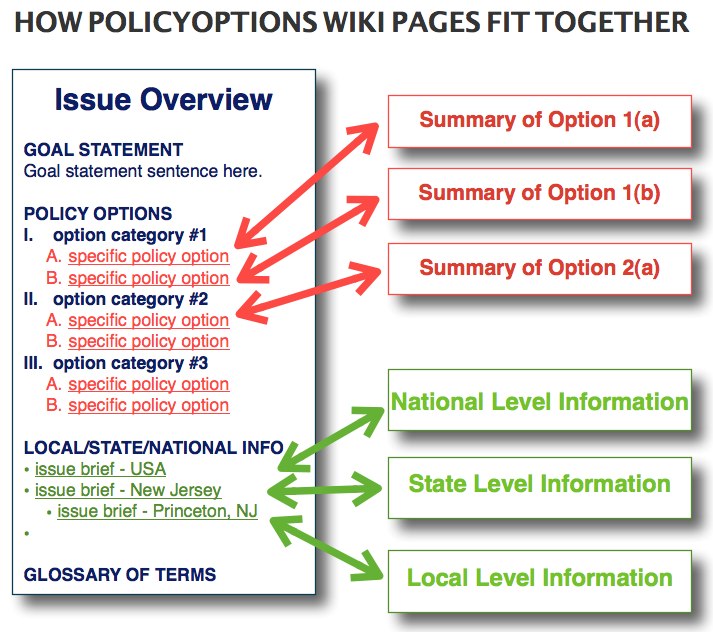
How Issue Brief Pages Fit Together
Begin addicting the pages of your issue brief using the formatting guide below for each type.
Each issue brief should have pages created for the following:
a) Issue Brief - Overview
This page should be found on the Issue Briefs page under the appropriate issue area(s)
b) Issue Brief - Local, State, and National pages:
Issue Brief - USA
Every issue brief must have an USA page for national information.
Issue Brief - State
Every issue brief should have a state page for state level information for the team that is researching and presenting the issue brief.
Issue Brief - Local
Every issue brief should have a local page for local level information for the team that is researching and presenting the issue brief.
c) Profile of Policy Options or Model Programs
Ideally, every issue brief should have at least and preferably three or more policy options or model program profiles found on the Issue Brief - Overview page.
The lead page for each issue is the Issue Overview page. Within this page there are links to pages for a) specific policy options and b) issue briefs on the topic that are specific to a local, state, national, or international context.
The PolicyOptions Wiki relies heavily on a series of templates, naming conventions, and navigation formats to ensure a consistent user experience and easy navigation across the site. We cover these below.
Page Naming Conventions
Local and State Bureau page naming convention
The four Bureau pages should be named as follows (note that the state name should be spelled out fully and that there is a hyphen between the state and city name).
HomePage - State or HomePage - City, State
HomePage - Ohio
HomePage - Oberlin, Ohio
Issue Briefs - State or Issue Briefs - City, State
HomePage - Ohio
HomePage - Oberlin, Ohio
Key Organizations - State or Directory of Organizations - City, State
Key Organizations - Ohio
Key Organizations - Oberlin, Ohio
Information Sources - State or Information Sources - City, State
Information Sources - Ohio
Information Sources - Oberlin, Ohio
Issue Brief page naming conventions
To make it easier to use the site, we're asking that pages be named as follows:
Issue Brief - Overview Page —> simply use the name of the issue (the shorter the better). For example,
Achievement Gap
Issue Brief - Local-State-National Information Pages —> use the issue name (same as the issue overview page name) and add a space, dash, another space and the location. For example,
Achievement Gap - USA
Achievement Gap - New Jersey
Achievement Gap - Princeton, New Jersey
Policy Option & Model Program Summary Pages —> give these a name that most closely identifies the option with the prefix of either "Policy Option - " or "Model Program - " ahead of it. This will make it easier to find them in the list of pages. For example
Model Program - Housing First
Policy Option - Require Federal Work-Study for Service
Slideshow: Examples of naming convention for bureaus and issue briefs.
There is a template for each of these pages. This video shows you how to create and link the bureau pages.
Adding New Issue Brief Pages
Step 1 — Name the page
Find appropriate page to locate the issue brief (see above for naming conventions);
edit page to add name of the issue brief (e.g., Sample Issue Brief - Pennsylvania); and c) Save the page.
Step 2 — Create the page by...
Click on new page link (e.g., Sample Issue Brief - Pennsylvania);
Click on "Use a template" option;
Select the appropriate template type; and
Click "Create page" button.
Updating Old Issue Brief Page Layouts
Over time we have improved the template for the issue brief pages. As a result, there are many that need their layout updated. The easiest way to do this is to follow these steps:
Click link below that matches the page type you're updating
Copy the whole template (up to "Contributors" at the bottom)
paste the template into the top of the existing issue brief page that needs updating, then click Save and Continue;
edit the Navigation Bar and Page Header (see directions below);
copy and paste the old body content into the appropriate section in the template at the top of the page.
delete the old section headings, then click Save.
Editing the Navigation Bar and Page Headers
Navigation Bar and Page Header
The top of each page in the PolicyOptions Wiki has a navigation bar and page header.
Each of the elements of the navigation bar should be linked to the related page to make it easy for the user to jump to it.
Each template page has the navigation bar in it ready to be edited and linked, as shown below:
Issue Briefs Navigation Bar & Page Header
Navigation Bar for Local Information Page —> Front Page / Issue Briefs / Issue Category / Issue Brief Title / USA / State / Local
e.g., Front Page / Issue Briefs / Education / After-School Programs / USA / New Jersey / Princeton
Model Program (or Policy Option) Navigation Bar & Page Header
Navigation Bar —> Front Page / Issue Briefs / Issue Category / Issue Brief Title / Model Program / Title
—> Front Page / Issue Briefs / Issue Category / Issue Brief Title / Policy Option / Title
e.g., Front Page / Issue Briefs / Poverty / Chronic Homelessness / Model Program / Critical Time Intervention
Local and State Bureau Navigation Bar, Page Header, and Sub-section Navigation
Key Organizations Navigation Bar —> Front Page / Key Organizations / USA / State / Local
e.g., Front Page / Key Organizations / USA / New Jersey / Princeton
Information Sources Navigation Bar —>Front Page / Information Sources / USA / State / Local
e.g., Front Page / Information Sources / USA / New Jersey / Princeton
Editing the Page Content
Formatting Options
The formatting options in PBwiki should be familiar to everyone.
What you need to know, however, is that cutting and pasting text directly from a Microsoft Word or other word processing document can introduce formatting code that is hard to remove. So, if possible, either a) re-type your text manually into the PBwiki page or b) save your original document as a text only document before copying and pasting the text into PBwiki.
Linking to other pages in the PolicyOptions Wiki
There are several ways to link to an existing page in PBwiki:
use the Add Link option found in the toolbar (see above).
type the name of the page you are linking to (note that similarly named pages will begin to show underneath)
...or you can use the Browse Pages and Files option, which brings up this menu which gives you a full range of options:
Linking to web pages outside the PolicyOptions Wiki
There are two options for adding links to web pages outside the PolicyOptions Wiki.
Use the Add Link button found in the toolbar, then type or copy/paste the url into the text input field.
...or, using the same Add Link button on the formatting bar, you can select Browse Pages & Files option, and then choose the Web Address sidebar option:
Linking to email addresses
You have two options for linking to email address.
Type the email address, select it, and then choose the Add Link formatting option, and hit return/enter on your keyboard:
...or, select the Add Link option in the formatting bar, then choose the Browse Pages & Files option, then choose the Email Address option on the left sidebar, type the email address, and the select Insert Link:
Adding footnotes
You use the option on the toolbar where you'll find the Add Footnote option under the PBwiki Magic section. We ask that you use APSA style for your footnotes (and to footnote everything!).


Comments (0)
You don't have permission to comment on this page.